
Gamers GLTool with Game Tuner
Trilokia Inc.Libraries & Demo
4.5769.00 Reviews
- Version
- 2.0
- Installs
- 5.00M
- Age Rating
- Everyone
Screenshots
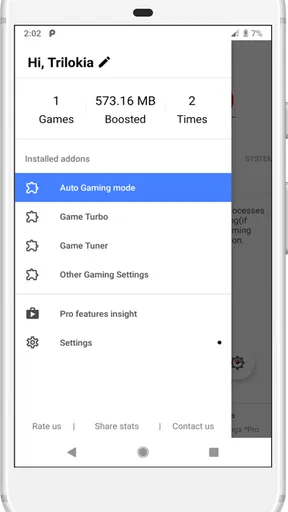
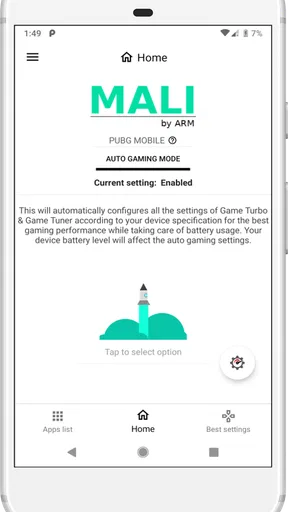
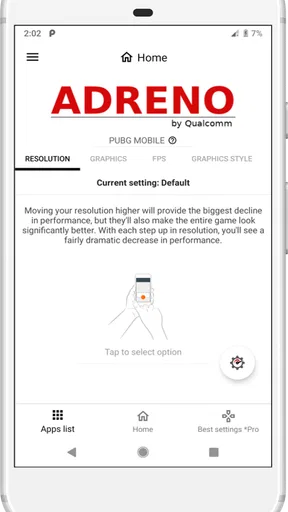
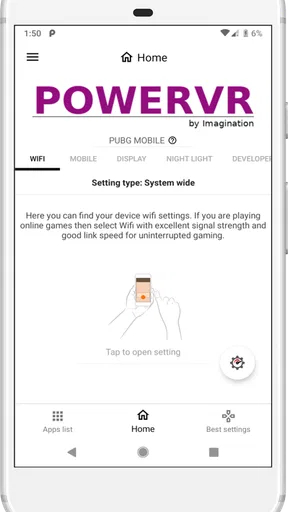
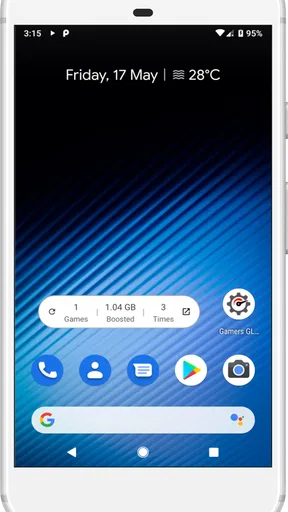
Our Review of Gamers GLTool with Game Tuner
 Analysis by Appyee
Gamers GLTool with Game Tuner is the kind of Android utility I would install when a game feels poorly balanced on my phone rather than when I want another game to play. Developed by Trilokia Inc., it sits in the Libraries & Demo category and focuses on adjusting the way games run and look. The idea is practical: give me a set of graphics and performance controls so I can search for a more comfortable compromise between visual quality, smoothness, heat, and battery use.
That sounds simple, but tools in this area deserve a more careful look than a normal game. A graphics tuner can change the experience without changing the game itself, and the useful settings depend heavily on the phone, the title, and the player's priorities. In my experience, the value here is not a magical performance boost. It is the ability to experiment with settings in one place instead of repeatedly digging through a game's own menus.
The app is free and suitable for Everyone, which makes it easy to try without committing money. It has a 4.5 average from around 45 thousand ratings and has passed 5 million installs, so it is clearly familiar to a sizeable Android audience. Its current version is 0.0.7, and it can run on Android 4.3 or later. Those details make it accessible to older devices, although compatibility with the app is not the same thing as a guarantee that every game or every tuning option will behave identically on every phone.
What I looked for before trusting a game-tuning tool
My first question with an optimizer is not “how much faster will my game be?” It is “what exactly am I allowing this tool to do?” A utility that sits between me and a game can affect the launch process, the settings I choose, and the way I troubleshoot problems later. That makes visible controls and understandable choices more important than a flashy promise of maximum performance.
Gamers GLTool with Game Tuner presents itself as a graphics optimizer rather than a replacement game, social network, or account-based gaming service. That distinction matters. I would use it as a configuration layer for gaming sessions, not as a place to store personal content or communicate with other players. The narrower purpose makes the app easier to evaluate: I can judge whether its controls help me reach a stable visual setup without expecting unrelated features.
Still, I would not treat a high rating as proof that the same settings will work for my device. Ratings show that many people found the app useful, but graphics tuning is unusually dependent on hardware, Android behavior, game updates, and the difference between a mid-range phone and an older entry-level model. I see the rating as a reason to investigate the tool, not as a promise of identical results.
Controls are more valuable than aggressive presets
The most sensible way to approach a tuner is to change one meaningful setting at a time. If I lower several options together and the game becomes smoother, I may never know which adjustment helped. If the picture becomes too soft or menus start looking strange, I also have no clear path back. I prefer a gradual workflow: note the game's original configuration, make one change, play long enough to encounter a demanding scene, and then decide whether the trade-off is worthwhile.
This is especially important because “better performance” can mean different things. One player may want a steady feel during movement, while another may value sharper textures and effects even if the frame delivery is less consistent. I would use the tool to pursue a stable experience, not automatically select every option that sounds more powerful. A lower visual setting that remains comfortable during a long session is often more useful than a dramatic preset that works for only a few minutes.
A practical test is to use the same short route or repeatable section of a game after each adjustment. For a racing game, that could be the same track; for an action title, a busy area with several effects on screen. I would also check menus, text, and aiming elements, because a setting that improves motion can make small interface details harder to read. This kind of controlled comparison is one of the app's strongest potential uses, even though it requires patience from the user.
Heat and battery change the decision
Graphics tuning is not only about frames or image quality. A setting that pushes a phone harder may feel good at the beginning and become uncomfortable later as heat builds. When I test a configuration, I pay attention to the whole session: whether touch response still feels reliable, whether the phone becomes distracting to hold, and whether the battery falls faster than I can accept.
That leads to a useful two-profile approach, even if I manage it manually. For short sessions near a charger, I might accept more visual detail. For travel, study breaks, or a long evening away from an outlet, I would favor conservative settings. The important insight is that the best configuration is situational. There is no universal “maximum” mode that is automatically best for every player or every phone.
I would also avoid judging the app after opening only one game. A setting that helps a lightweight title may be unnecessary for another game, while a demanding title may react differently to the same choices. Treat each game as its own experiment and keep expectations realistic: the tool can help tune available behavior, but it cannot turn old hardware into new hardware.
Data-sensitive moments and visible user choice
When I review a utility like this, I separate what I can actively control from what I might be tempted to assume. The app's purpose tells me it is built around game-graphics adjustment, but purpose alone does not answer every privacy question. I therefore look for the choices presented during setup and normal use, read permission prompts instead of dismissing them automatically, and avoid granting access that does not appear necessary for the task I am trying to complete.
This is a habit I recommend with any optimizer. If Android displays a permission request, I want to understand its wording and decide whether it fits the feature I am using. I do not approve requests simply because the app is free or popular. If a prompt seems unrelated to tuning a game, I pause and consider whether I can continue without it. That keeps control with me and prevents convenience from turning into an automatic acceptance of every request.
Account control is another useful boundary. I would not create or connect an account merely to adjust graphics unless the app clearly explains why that step is needed and what I gain from it. A tuner should fit into my gaming routine without pressuring me to hand over more information than the task requires. If an account screen appears, I would read the available choices carefully and look for a way to use the core function without unnecessary commitment.
The same caution applies to advertisements, external screens, and download prompts. A free utility may use different ways to support itself, but I still want a clear distinction between a tuning control and a promotional element. I tap only what I intend to tap, especially when I am changing settings quickly before a game session. This is not a criticism of one specific screen; it is the sensible way to handle any free tool that sits close to other apps and system settings.
What I would do before changing anything
I would record the game's original graphics choices, either by taking a screenshot or writing down the important values.
I would change a single option and test it in a demanding, repeatable part of the game rather than judging it from the loading screen.
I would stop if the image becomes unreadable, controls feel delayed, the phone becomes unusually hot, or the game behaves unpredictably.
I would restore the previous setup before trying another combination, so I always know which configuration I am evaluating.
This process answers a question many new users have: can the app fix every stutter? No tool should be treated that way. Stuttering can come from network conditions, game servers, background activity, thermal limits, storage pressure, or the game itself. A graphics tuner is most useful when the bottleneck is related to rendering choices. If the problem is an unstable connection or a faulty game update, changing visual settings may not solve it.
Another common question is whether using a tuner is right for competitive play. My answer is cautious. If a game has strict rules about external tools or modified launch behavior, I would check those rules before using any optimizer. Even when the intention is only to adjust graphics, competitive environments can treat outside utilities differently from ordinary single-player use. For casual play, the risk of confusion is lower, but I would still keep the setup simple and reversible.
A realistic everyday scenario
Imagine I am waiting for a train and want to play for half an hour on a phone that is not especially powerful. The game runs, but busy scenes feel uneven and the device is already warm. I would open Gamers GLTool with Game Tuner, choose a restrained configuration, and test the same busy section instead of immediately chasing the highest possible image quality. If the game feels steadier and the text remains clear, I would keep that setup for mobile sessions.
Later, at home, I might try a more detailed configuration while the phone is cool and charging. If the improvement is mostly cosmetic but the device becomes uncomfortable, I would return to the restrained setup. This scenario shows where the app can be helpful: it gives me a repeatable place to manage compromises. It also shows why the app should not be judged by a single “best setting.” My travel configuration and my home configuration can reasonably be different.
For someone who changes games frequently, the main friction is remembering what worked. I would keep a small note with the game name, the configuration I preferred, and the reason I chose it. That may sound excessive, but it prevents endless trial and error after an update or reinstall. It also helps me identify whether the app is genuinely improving my routine or merely encouraging constant tweaking.
How it compares with built-in settings and other approaches
The obvious alternative is the game's own graphics menu. That option is usually the cleanest because the developer designed it for that title, and it keeps the configuration close to the game. If the built-in menu already gives me a useful balance between quality and smoothness, I would prefer it. There is no reason to add another layer just for the sake of having more controls.
Gamers GLTool with Game Tuner becomes more interesting when the in-game choices are limited, scattered, or difficult to manage consistently. A dedicated tuner can make experimentation feel more deliberate, particularly for players who use several games and want a familiar adjustment workflow. The trade-off is that an extra layer may introduce its own learning curve. I need to understand what each option changes and remember that a setting that works in one title may be unhelpful in another.
Phone manufacturers sometimes include gaming dashboards or performance modes. Those can be better when my main concern is system-wide behavior, notifications, touch handling, or battery management. I would choose the built-in phone tools when they already cover my needs, because they are designed around that device. I would choose this app when my priority is specifically experimenting with game graphics rather than managing the entire phone.
There is also a manual alternative: use the game's settings, lower resolution or effects, close background apps, and keep the phone cool. That approach costs nothing and avoids another utility, but it can be tedious across multiple games. The app's convenience is therefore its clearest advantage. It does not eliminate the need for judgment; it reduces some of the repeated searching involved in finding a workable setup.
Who should use it, and who should skip it
I think the app is a good match for Android players who enjoy fine-tuning, have a game that offers limited graphics control, or regularly move between visual quality and smoother play. It also makes sense for someone using an older phone who wants to test conservative settings before giving up on a demanding game. The free price makes that experiment low-risk in financial terms, although the user's time and attention still matter.
I would skip it if I am satisfied with every game's built-in settings, dislike troubleshooting, or expect one tap to solve all performance problems. I would also be cautious if I play a title with strict competitive policies and cannot establish that external tuning is acceptable. Players who mainly need better network stability, more storage, or a cooler battery should look at those underlying issues first; a graphics utility is not a substitute for them.
New users should resist changing everything at once. The app is easier to judge when I treat it as a controlled adjustment tool, not a booster button. Experienced users may enjoy the extra flexibility, but even they benefit from keeping a known-good baseline. The best result is usually the configuration I can explain and restore, not the one with the most aggressive values.
My cautious verdict after using it
Gamers GLTool with Game Tuner is a focused free utility for Android players who want more deliberate control over game graphics. Trilokia Inc. has positioned it in the Libraries & Demo area rather than as a game itself, and that feels accurate: its purpose is to help shape a gaming session, not replace the games I already play. Its broad device compatibility, including Android 4.3 and later, also makes it approachable for people using older phones.
What I like most is the possibility of turning vague frustration into a structured test. Instead of saying “this game feels slow,” I can try a conservative visual setup, compare a repeatable scene, and decide whether the image-quality trade-off is acceptable. That is a real benefit for patient users. The free availability and Everyone content rating make it easy to explore without a purchase barrier.
My reservations are equally important. Results depend on the individual phone and game, and careless experimentation can create more confusion than improvement. I would read every Android permission prompt, avoid unnecessary account steps, keep track of the original settings, and check any game-specific rules before using the tool in competitive play. Those habits are part of using the app responsibly, not optional extras.
With those expectations, I would recommend it to a friend who enjoys tuning Android games and understands that performance is a compromise. I would not recommend it as a guaranteed cure for lag or as a replacement for built-in game and device settings. The right reason to install it is to gain clearer control over experimentation, not to expect hardware-defying results. For that specific purpose, it is worth trying; for everyone else, the simplest settings already available in the game may be the better choice.
Privacy and Permissions
See what permissions an app requests and how it handles your data.
- Camera
- take pictures and videos
- Microphone
- record audio
- Wi-Fi connection information
- view Wi-Fi connections
- Other
- view network connections, allow Wi-Fi Multicast reception, full network access, close other apps, change your audio settings, draw over other apps, control vibration, prevent device from sleeping, modify system settings
Verdict
Strengths of Gamers GLTool with Game Tuner
- Offers extra controls for resolution, FPS, and graphics quality.
- Can help reduce lag on compatible Android devices.
- Includes game-specific profiles for faster setup.
- Provides useful performance details while playing.
- Works without requiring root on many devices.
Limitations of Gamers GLTool with Game Tuner
- Some advanced options may not work on every phone or game.
- Aggressive settings can increase heat and battery consumption.
- The interface may feel confusing for first-time users.
- Certain features may require ads or in-app purchases.
- Results vary considerably depending on device hardware and Android version.
Other Releases by Trilokia Inc.
View All
PGT: GFX, Launcher & Optimizer
Libraries & Demo4.5
Similar Picks in This Category
View AllPGT: GFX, Launcher & Optimizer
Trilokia Inc.4.5

AusweisApp Bund
Governikus Service GmbH3.7

Cardboard
Google LLC3.2

Multi Web Chat - Read Secretly
World Scan & Cleaner3.8

App Cloner Premium & Add-ons
App Listo1.9

Holy Quran Offline Reading
JedyApps4.4
Frequently Asked Questions
What is Gamers GLTool with Game Tuner used for?
Gamers GLTool with Game Tuner is an Android utility designed to help users adjust game performance and graphics settings. It can provide controls for resolution, frame rate, graphics quality, GPU-related options, RAM management, and other tuning features, depending on the device and Android version. It is mainly aimed at players who want smoother gameplay or more control over demanding games.
Can Gamers GLTool with Game Tuner increase FPS in every game?
No application can guarantee a higher frame rate in every game. Gamers GLTool may help optimize available settings, reduce unnecessary background activity, or make performance adjustments on compatible devices, but the final result depends on the phone’s processor, GPU, cooling system, game engine, and the options supported by the game. Some titles may show little or no improvement, especially when hardware is already being fully used.
Does Gamers GLTool with Game Tuner require root access?
The need for root access depends on the specific feature and the Android version. Basic tuning options may work without root, while advanced controls can require additional permissions, wireless debugging, or root access. Before using any high-level setting, users should read the permission prompts carefully and check whether their device supports it. Avoid granting access that is unrelated to the app’s stated purpose.
Is Gamers GLTool with Game Tuner safe to use?
The app can be useful when downloaded from a trustworthy source and used with moderate settings, but performance-tuning tools should always be handled carefully. Aggressive changes may cause overheating, crashes, graphical glitches, battery drain, or unstable gameplay. It is also wise to review requested permissions, keep a backup of important data, and restore default settings if the phone becomes unusually hot or applications start behaving incorrectly.
Can using Gamers GLTool with Game Tuner lead to a game account ban?
The risk depends on how the tool interacts with each game. Adjusting ordinary graphics or performance settings is generally different from modifying game files, automating actions, or gaining an unfair advantage. However, some online games have strict anti-cheat policies and may flag unsupported tools or unusual system behavior. Check the game’s terms of service before using advanced features, particularly in competitive multiplayer titles.
